
One of the improvements that Snow Leopard has brought with it has been the substantial improvement of Automator. Automator is a program that allows you to automate certain repetitive tasks to save us the time that it would take us to do them manually, such as moving files, resizing images or anything that comes to mind. If we combine this program with the Folder Actions feature, we can save a lot of work.
Move Videos to Movies folder
When you have the movies folder synchronized with the Xbox 360, it is very useful to send the movies that you download directly to it. Therefore, the following workflow will automatically send all the video files that we add to the “Movies” folder.
Simply open Automator (It is in the “Applications” folder) and choose “Folder Actions” from the templates shown.
[caption id=”attachment_3307” align=”aligncenter” width=”500” caption=”Performs tasks on the elements of a folder.”] [/caption]
Once the template is selected, we will only have to select the tasks that we want to be executed during the workflow from all those on the left. The workflow will be carried out in order, so we must choose them in a logical way. For example, in the following example, every time we add a file to the “Downloads” folder it will check that it is of the movie type, and in that case it will move it to the corresponding folder. It is not difficult, although at first it is easy to get lost among so many options.
[caption id=”attachment_3308” align=”aligncenter” width=”500” caption=”Workflow to move videos to the movies folder”]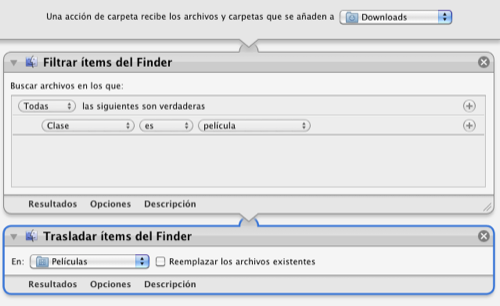 [/caption]
Once we are done, we will only have to press “? + s” (or go to File/Save) to give our folder action a name and have it fully operational. If we get confused about something and we have already closed Automator, we can edit the folder action by right-clicking on the folder in question and selecting “Folder Actions Settings”, selecting the one we want to modify and clicking on “Edit Workflow” (I guess it would be edit workflow, but that’s what it says).
Comments are provided by Disqus. When you load them, Disqus may use cookies and process data such as your IP address.
Disqus privacy policy