
We have already talked to you about Dropbox on some occasions in this blog: Dropbox, an online hard drive, Dropbox for university students.
That tool that is used to have a synchronized folder “in the cloud” accessible by all our computers (If you register from here, they will give you an extra 500MB). However, although it may seem very simple, Dropbox deep down hides some qualities that make it a really interesting utility beyond synchronizing specific files.
Below I detail a few advanced utilities that can be given to Dropbox.
First of all… What is this synchronization thing for?
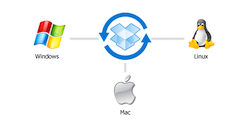 Sincronizando carpetas y archivos de nuestros ordenadores nos permitirá tener las mismas versiones en todos, viendo reflejados los cambios que hagamos en uno u otro como si estuviéramos trabajando en el mismo. Esto nos ahorra la tediosa tarea de andar copiando archivos de un ordenador a otro cada vez que necesitemos algo, puesto que se hará de manera totalmente automática.
In addition, by having the files in the cloud we will have a backup copy in case of loss or theft of one of our computers, being able to access previous versions of the files automatically stored in Dropbox.
All my work and studies depend on the computer, so the loss of information would be fatal, so storing files in the cloud offers me extra security that is perfectly complemented by the occasional backup copies that I make at home.
Another point in favor is that if we need it, we can have our work computer synchronized with our home computer, something very useful in certain professions (such as web developer, designer, etc.).
What is the concept?
The main idea behind all the solutions presented here is to move certain folders or files to Dropbox and then create symbolic links to the new folders/files where the originals were.
Symbolic Link? Which?
A symbolic link can be used on all operating systems: Windows (where it is often called a symbolic link), Mac OS X, and Linux. It is basically a file that points to another file or folder on the system, something similar to a shortcut that only serves to redirect the user.
Sync iTunes Library
 Si tienes varios ordenadores puede que te resulte un coñazo tener varias bibliotecas de iTunes, así que una opción interesante es moverla a Dropbox (Cuidado: Si tu biblioteca es muy grande necesitarás mucho espacio en Dropbox).
To do this, simply drag your ~/Music/iTunes/ folder to Dropbox and the next time you start iTunes, hold down the “alt” key and select the new library location. (Works for Windows and Mac)
Sync iPhoto Library
The steps to follow are the same as in the case of iTunes, but this time we will have to select the iPhoto library from ~/Images/iPhoto Library/.
Synchronize the Documents folder (Mac OS X)
If we continually work in the Documents folder (both on Windows and Mac) we may want to keep it synchronized on our computers. To do this, we will move it to Dropbox and create a symbolic link to it in its usual location:
#We move the Documents folder to Dropbox #mv ~/Documents/ ~/Dropbox/
#We create the symbolic link ln -s ~/Dropbox/Documents/ ~/Documents/
Send files to Dropbox by Email

There are pages that allow you to send emails and send their attachments to Dropbox. One of these pages is Send to Dropbox, which associates our Dropbox account with an email address. This way, if we send an email to this address, the attachment will automatically be uploaded to Dropbox.
Back up our blog to Dropbox
Using the previous point, we can send backup copies of the database of our blog or website automatically to Dropbox.
To do this, we can use a plugin like WP Database Backup to send emails to the address associated with our Dropbox account or also through a custom Unix script like the one on this page and program it with CRON:
#Set the 4 variables #Replace what is AFTER the = with the information from your wp-config.php file #That’s your information on the right okay ?
DBNAME=DB_NAME
DBPASS=DB_PASSWORD
DBUSER=DB_USER
#Keep the “ around your address EMAIL=”you@your_email.com”
mysqldump –opt -u $DBUSER -p$DBPASS $DBNAME > backup.sql gzip backup.sql DATE=`date +%Y%m%d` ; mv backup.sql.gz $DBNAME-backup-$DATE.sql.gz echo ‘Blog Name:Your mySQL Backup is attached’ | mutt -a $DBNAME-backup-$DATE.sql.gz $EMAIL -s “MySQL Backup” rm $DBNAME-backup-$DATE.sql.gz
You will have to paste and customize the previous text in a .sh file in the etc folder of your server and then program it as a CronJob,
Synchronize Photoshop or Aperture Presets
If you use a photography program with some defined presets, when you change computers you will not have them, but everything is solved by copying a folder to Dropbox:
For Aperture
#We copy the Folder with the Aperture presets and plugins to Dropbox mv ~/Library/Application Support/Aperture ~/Dropbox/
#Create the symbolic link to the Dropbox folder ln -s ~/Dropbox/Aperture/ ~/Library/Application Support/Aperture
On the computer you want to synchronize, just execute the second command.
For Photoshop
#We copy the Folder with the Aperture presets and plugins to Dropbox mv ~/Library/Application Support/Adobe/Photoshop CS5/Presets ~/Dropbox/PhotoshopCS5Presets/
#Create the symbolic link to the Dropbox folder ln -s ~/Dropbox/PhotoshopCS5Presets/ ~/Library/Application Support/Adobe/Photoshop CS5/Presets
On the computer you want to synchronize, just execute the second command.
Synchronize Coda between multiple computers
If you are a web developer and use Mac OS X, you may know Coda. If we have several computers, we are probably interested in having our projects synchronized. To do this we will move several Coda configuration files to Dropbox as follows:
#Move the Coda preferences folder and files to Dropbox mv ~/Library/Application Support/Coda ~/Dropbox/ mv ~/Library/Preferences/com.panic.Coda.plist ~/Dropbox/Coda/ mv ~/Library/Preferences/com.panic.Coda.LSSharedFileList.plist ~/Dropbox/Coda/
#Create a symbolic link to the new location where the files were ln -s ~/Dropbox/Coda/ ~/Library/Application Support/Coda ln -s ~/Dropbox/Coda/com.panic.Coda.plist ~/Library/Preferences/com.panic.Coda.plist ln -s ~/Dropbox/Coda/com.panic.Coda.LSSharedFileList.plist ~/Library/Preferences/com.panic.Coda.LSSharedFileList.plist
On the computer you want to synchronize, you will only have to delete the originals from your computer and execute the second command block to create the symbolic links.
Sync Safari and Firefox bookmarks
Google Chrome offers very good bookmark synchronization, but Firefox synchronization doesn’t convince me and Safari doesn’t even have it, so we can also do everything through Dropbox.
Safari
mv ~/Library/Safari ~/Dropbox/ ln -s ~/Dropbox/Safari/ ~/Library/Safari
Firefox
mv ~/Library/Application Support/Firefox ~/Dropbox/ ln -s ~/Dropbox/Firefox/ ~/Library/Application Support/Firefox
Comments are provided by Disqus. When you load them, Disqus may use cookies and process data such as your IP address.
Disqus privacy policy