
After having taken our first steps with the Raspberry Pi and having configured a remote control in Openelec, now it is your turn to correctly configure the Openelec SAMBA protocol to be able to access the Raspberry’s external drive from other computers on the LAN.
This post belongs to a series of posts about Raspberry Pi:
- First steps with a Raspberry Pi
- [Customize the buttons of a remote control for
- Configure SAMBA on the Raspberry Pi with Openelec and external hard drive
What are we doing this for? To be able to have our library of movies and series always in the same place and, in turn, to make them available to all users of our local network.
By default, when connecting a hard drive to the Raspberry, it will be automatically recognized if it has a compatible format. In particular, I recommend formatting it in exFAT for several reasons: it is compatible with Windows and Mac (I suppose with Linux as well), it allows files larger than 4GB (not FAT32).
Once formatted and connected to the Raspberry, if we connect from the computer to the Raspberry using SAMBA (from the Mac Finder, for example) we will see that the hard drive has been mounted in the “Media/diskname” path (In my case I called it multimedia).
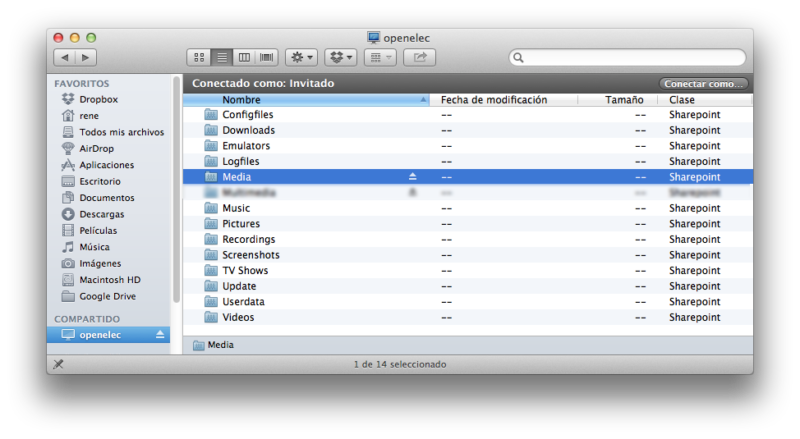
However, if you enter the hard drive and look below at the space available on the hard drive, it may not match the real space. In my case, on a 1TB disk it detects only 9.7MB available.

To correct this, we have to go to the “Configfiles” directory of the Raspberry (It is in the root directory when we connect through SAMBA, as you can see in the first screenshot).
Once there we duplicate the samba.conf.sample file and rename it to samba.conf.

Then we open it with a text editor (Notepad on Windows or Textedit on Mac) and add a new section at the end that refers to the external hard drive.
[Multimedia] path = /media/multimedia available = yes browsable = yes public = yes writable = yes
In path we will put the path in which the hard drive is mounted. We set all other options to “yes” so that it is public, navigable, available and can be written to (to add files from another computer, for example). Between brackets is the name of the directory that will be generated, so we can put whatever we want.
Once this is done, we save the file, restart the Raspberry and when accessed again using SAMBA, a new directory called “Multimedia” should appear. If we access it, it should already show the space correctly.

That’s it. We can now send movies to a hard drive connected to the Raspberry.
Comments are provided by Disqus. When you load them, Disqus may use cookies and process data such as your IP address.
Disqus privacy policy