
 Continuamos con la última parte del manual de eMule. Una vez que ya hayamos descargado e instalado eMule y abierto los puertos del router/firewall, volveremos al eMule para proceder a la configuración del programa. Si es la primera vez que usamos el eMule, nos saldrá un asistente para configurarlo, pero haremos clic en “Cancelar” porque vamos a configurar todos sus parámetros de manera manual desde otro sitio.

To configure the eMule we will go to the top tab called “Preferences”. A new window will open with many configuration parameters, but don’t worry because we are not going to touch them all.
The options that we are going to configure will serve to increase the speed of our eMule, to automatically update the list of servers and to filter “malicious” servers to prevent infection with viruses, spyware and spam.
Connection: Configure eMule Speed and Ports
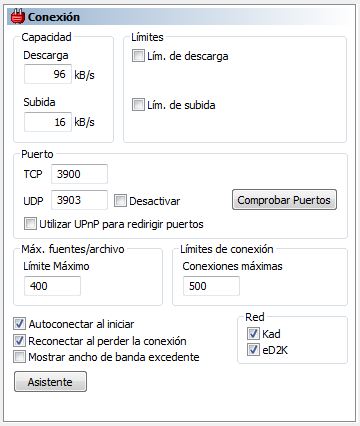
Our first stop in this tutorial will be to configure the speed of eMule according to the speed of our internet connection and set the ports that we have previously opened on our router, as well as the maximum connections per file and the limit of maximum connections.
General Settings for all speeds
- Ports: Those that we have opened (UDP should be TCP+3)
- Maximum Connections per File: 1000
- Connection Limit. Highs: 1000
Connection-dependent configuration
| Internet speed | Download | Rise |
|---|---|---|
| 1 Mega | 100KB/s | 22KB/s |
| 2 Megas | 204KB/s | 22KB/s |
| 3 Megas | 306KB/s | 22KB/s |
| 4 Megas | 400KB/s | 45KB/s |
| 6 Megas | 612KB/s | 45KB/s |
| 8 Megas | 816KB/s | 45KB/s |
| 20 Megas | 2040KB/s | 70KB/s |
We may have to restart eMule to see the changes made in this section, especially if we have modified the ports.
Server: Configuring the Server list
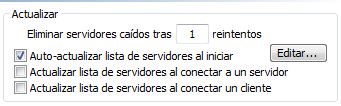
eMule has two important files from which it updates the servers it connects to: server.met and addresses.dat. The first contains a list of all the servers we have available and the second contains the update addresses for said list.
We will select, as the image shows: “Auto-update server list at startup” and click on “Edit”. The notepad will open and we will add the following lines:
[text] https://www.gruk.org/server.met.gz https://www.peerates.net/servers.php [/text]
These will be the addresses where you will automatically update the server list.
Messages and Comments: Avoiding Spam
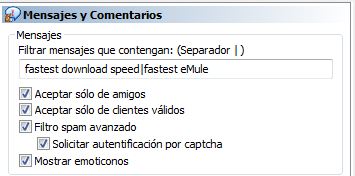
Through eMule it is possible to send messages to other users, a feature that many spammers use to advertise their web pages or to send viruses. For this reason, it is advisable to select the “Accept only from friends” tab so that strangers cannot contact us. If the rest of the options are not checked, we will also check them.
Security: Avoiding viruses and Spyware
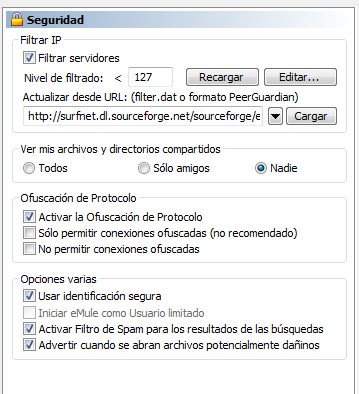
Perhaps the Security tab is one of the most important in eMule, because in it we will configure a series of options so that our computer does not become a victim of Viruses, Malware or Spyware. It may have happened to many of you that when searching for something you get some files with many sources with the words “crack”, “porn”, “nude”, etc. This is because you have connected to a “malicious” server or because there is spam on a server on the network.
To prevent unpleasant things from happening to us, we will activate “Filter Servers” and in “Update from URL” we will add the address of a filter:
[text]https://surfnet.dl.sourceforge.net/sourceforge/emulepawcio/ipfilter.dat\[/text\]
When you click upload, you will download a file that will be between 3MB and 20MB in size. It is advisable to do this once a month to update the list of IPs. We will also activate “Protocol Obfuscation” in case our ISP tries to block eMule downloads, Secure Identification and Spam Filter.
Does eMule download slowly or appear with a bandage?
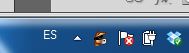 Si tras realizar todos los cambios del tutorial, tu eMule descarga lento o en su icono aparece con los ojos vendados, será porque tienes “Low ID”. Esto se puede deber a tres cosas:
- The router ports are closed and we must open them.
- We have not put the same ports on the eMule that we have opened on the router.
- We have blocked eMule by the Windows Firewall.
The solution to all these problems can be found by reviewing the second part of the tutorial (Open the router/firewall ports) which you should review that part of the tutorial.
Comments are provided by Disqus. When you load them, Disqus may use cookies and process data such as your IP address.
Disqus privacy policy