
One of the most interesting features of Raspberry Pi and Openelec is that they support HDMI CEC. This means that using a television compatible with this technology, we can control the Raspberry with the remote control. In some cases the buttons will correspond correctly with what we want them to do, but in others we will have to configure them ourselves. I’m going to explain how I did it to configure mine.
This post belongs to a series of posts about Raspberry Pi:
- First steps with a Raspberry Pi
- Customize the buttons of a remote control for XMBC on a Raspecrry Pi with Openelec
- [Configure SAMBA on the Raspberry Pi with Openelec and external hard drive](/2013/06/10/configure-samba-on-the-raspberry-pi-with-openelec-and-external-hard drive)
I have an LG remote and when using it for the first time I realized that it had no way to display context menus to, for example, set the contents of a directory or update the library.
Activate XMBC debug mode and record controller keystrokes
First of all we have to know which buttons on the controller XBMC is detecting. To do this we will activate debugging mode in Settings > System. Once activated, it will appear in the upper left part of the screen where the log file, the memory consumed and the CPU are located.
The log file will be where the remote control keystrokes will appear, so we will have to review it in real time to see which ones it detects. To do this, using the terminal, accessing via SSH we will enter the following command:
tail -f /storage/.xbmc/temp/xbmc.log |grep OnKey:If we press a button on the remote control, it will be registered like this:
21:24:07 T:3041906688   DEBUG: OnKey: 166 (a6) pressed, action is Up
21:24:08 T:3041906688   DEBUG: OnKey: 168 (a8) pressed, action is Right
This way we will know which keys are detected, which will mainly depend on the manufacturer of the TV and the remote control. The key id will appear on the left and the action being executed on the right. In my case, after testing, the keys that have been detected are those marked in yellow.
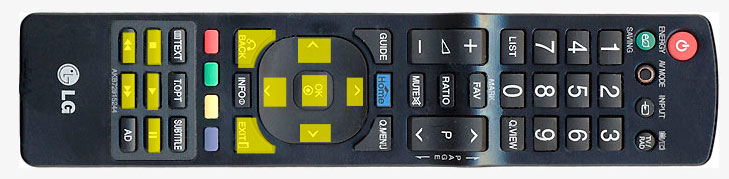 Mando a distancia LG AKB72915244
Create the custom remote.xml file
Now that we know what keys the Raspberry detects, we will have to create our own configuration file. There are several types of keymapping configuration files: keyboard.xml, gamepad.xml, etc. We are interested in remote.xml, which defines the configuration of a remote control.
By default, the configuration files are located in the following path:
/usr/share/xbmc/system/keymaps/But we will have to create our own file, which will overwrite the default configuration (without loading it) in the following path:
/storage/.xbmc/userdata/keymapsThere we will create a remote.xml file
nano remote.xmlIn my case, with the following content:
<keymap>
        <global>
                <remote>
                        <skipminus>back</skipminus>
                        <skipplus>ContextMenu</skipplus>
                        <stop>XBMC.ActivateWindow(Home)</stop>
                </remote>
        </global>
        <home>
                <remote>

<skipminus>XBMC.ActivateWindow(VideoLibrary,TvShowTitles)</skipminus>

<skipplus>XBMC.ActivateWindow(VideoLibrary,addons://sources/video/)</skipplus>
                        <reverse>XBMC.ActivateWindow(VideoLibrary,MovieTitles)</reverse>
                </remote>
        </home>
        <FullScreenVideo>
                <remote>
                        <select>Info</select>
                        <pause>pause</pause>
                        <stop>stop</stop>
                        <left>VolumeDown</left>
                        <right>VolumeUp</right>
                        <up>ShowSubtitles</up>
                        <down>AudioNextLanguage</down>
                        <skipminus>StepBack</skipminus>
                        <skipplus>StepForward</skipplus>
                        <forward>VolumeUp</forward>
                </remote>
        </FullScreenVideo>
</keymap>
In the xml, the most internal elements are the XBMC actions, of which you have a list in the official wiki. The elements that surround the actions are the button identifiers (select, pause, forward, etc.). Outwardly we then find the type of control that we are defining (in this case “remote”). The next element indicates where in the XBMC interface that press will work: anywhere (global), on the main screen (home) or when watching a video (FullScreenVideo).
For example, I have set it so that in any site (global), pressing the “skipplus” key executes the “ContextMenu” action, which displays a contextual menu. Also, pressing “up” during playback changes the subtitle track and pressing “down” changes the audio track.
I have not found a way to know the names of the buttons, it has been testing and comparing with the original configuration file, which is where you should look to identify them.
To make it more convenient for you, you can download the original remote.xml file via SSH to your computer:
scp root@192.168.1.100:/usr/share/xbmc/system/keymaps/remote.xml /Volumes/Macintosh HD/reneA good way to find out your local path is to simply drag the directory from the Finder.
Every time you make a change and want to test if it works, you will have to restart the Raspberry to see the changes. Once finished you can deactivate the debugging mode and enjoy with your remote control (how bad that sounds).
I hope you found it useful. I would have liked to have this post when I started playing with the Raspberry Pi. :)
Comments are provided by Disqus. When you load them, Disqus may use cookies and process data such as your IP address.
Disqus privacy policy