
 Continuando con el manual para configurar el eMule para descargar rápido tras haber visto cómo descargarlo, ya puede ser un problema para los usuarios menos experimentados debido a la gran cantidad de opciones que tiene. Hace poco lo tuve que configurar en mi casa y hay que reconocer que tiene algunos puntos que no son nada triviales, así que los voy a ir desglosando poco a poco.
Allow eMule in Windows Firewall
If this is the first time we open eMule, we will most likely get a message asking if we allow the program to connect to the Internet. This message appears automatically because we have Windows Firewall activated.
[caption id=”attachment_3588” align=”aligncenter” width=”549” caption=”Adding an exception to Windows Firewall”]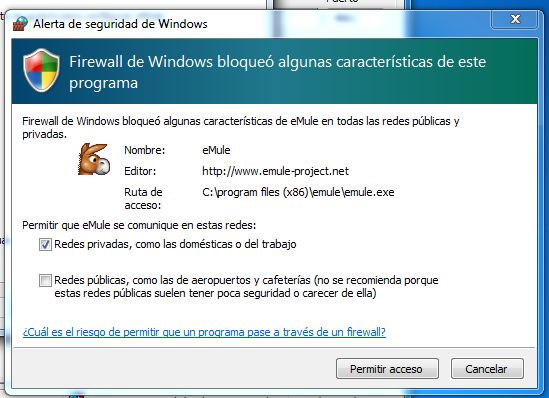 [/caption]
When we are asked if we want to unlock the eMule, we must select “Private networks, such as home or work” and then “Allow access”.  In the event that this is not the first time we run the program, we must check in the Control Panel that the Windows Firewall options allow eMule to connect to the internet. To do this we will go to the Control Panel and enter “Windows Firewall”. Once there, in the side menu we will select “Allow a program or feature through Windows Firewall” and then we will check that the “Private Network” tab is marked for eMule.

Open Router Ports for eMule
It is very possible that we also need to open the router ports for the eMule in case they are closed. Think of the concept of a port as if it were a door through which all the information we download passes; If it is closed, you will not be able to pass through. Many routers from companies such as Telefónica, Orange, Ya.com or Jazztel come with their own program to open the router ports, but there is a general way to do it from the browser by entering its configuration menu. Router addresses are usually three:
- 192.168.0.1
- 192.168.1.1
- 192.168.2.1
We will have to enter one of them in the address bar of our browser and try our luck. If it doesn’t work, we’ll try another one. Once we have found the correct address, we may need to enter a username and password to manage the router. The username is usually “admin” and the passwords “admin” or “1234”. The best thing you can do is do a Google search to find out the password for your router model. For example “Xavi 7768r Telefónica router password”.
[caption id=”attachment_3591” align=”aligncenter” width=”530” caption=”Opening the router ports for eMule”] [/caption]
Once inside the administration panel, the distribution and options can be very different depending on the router model and the telephone company with which you have internet, but the option we are looking for is usually called “NAT”. As for finding the password, my recommendation is to do a Google search to find out specifically how to open the ports for your router model: “open Xavi 7768r Telefónica router ports”.
What ports do I open?
For convenience, I always open ports “6900” TCP and “6903” UDP for convenience. It’s like a standard that I impose on myself to make the task of managing ports easier.
That’s it for this second part of the series of tutorials on eMule configuration.
Comments are provided by Disqus. When you load them, Disqus may use cookies and process data such as your IP address.
Disqus privacy policy